Common questions, answered honestly. If yours isn't here, reach out.
Hi there,
Great question — this trips people up at first. Here's how the time bank works:
When you finish an activity, Move2Swipe immediately credits your time bank with the minutes you configured for that activity — and if your balance is above zero, blocked apps unlock right away.
So if you set an activity to earn 30 minutes and you complete it, you'll have 30 minutes in your bank and your blocked apps will be accessible until that balance runs out.
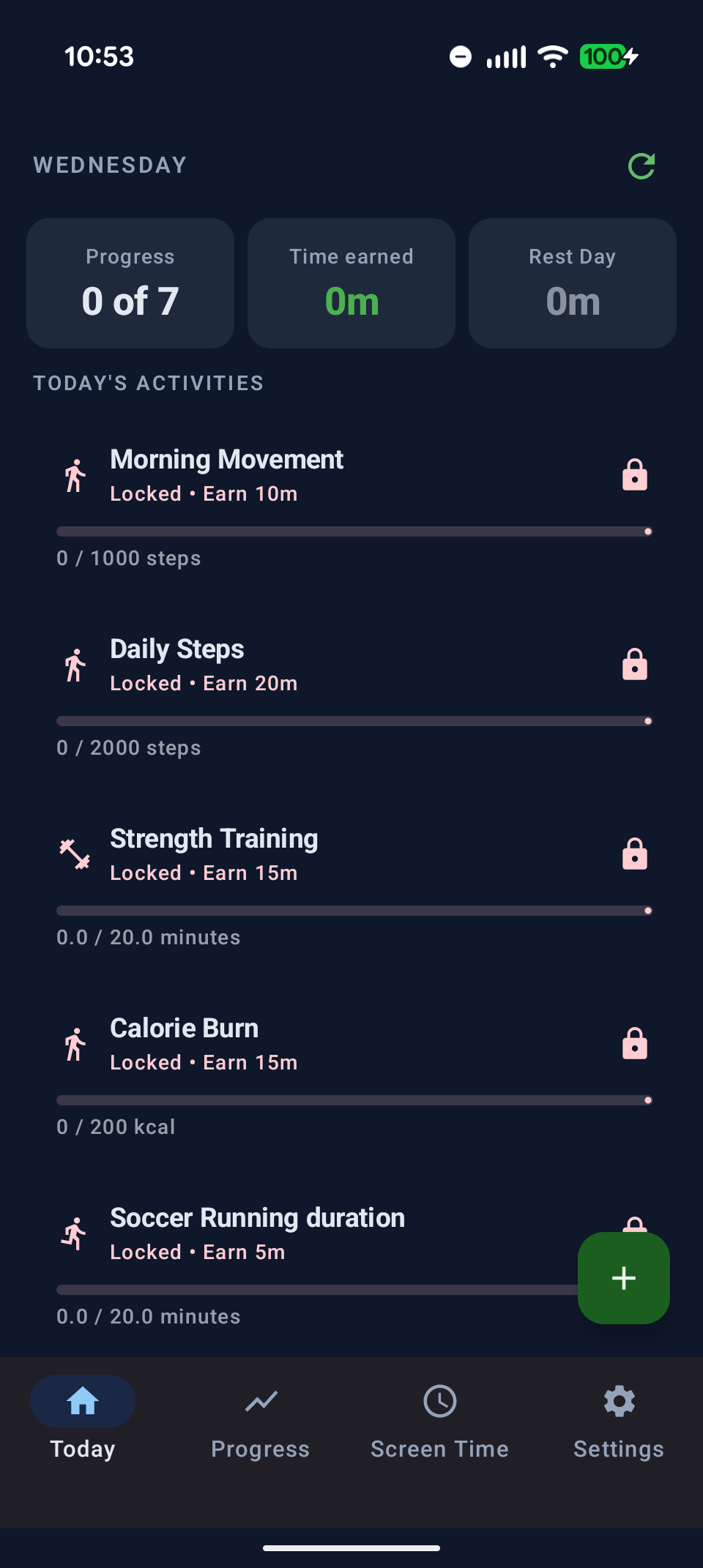
The Today screen shows your current time bank and activity progress
If you're still stuck, check your wearable connection in Settings → Wearable and make sure the companion app has permission to share data with Health Connect.
Hi Mary,
Great question — and honestly, this is a really smart way to use Move2Swipe!
The best approach here is Session Limits. Instead of letting all your banked time run in one long session, you can cap how long a single session runs before the app gets blocked again. That way, even if you've earned an hour, you're forced to take breaks between sessions.
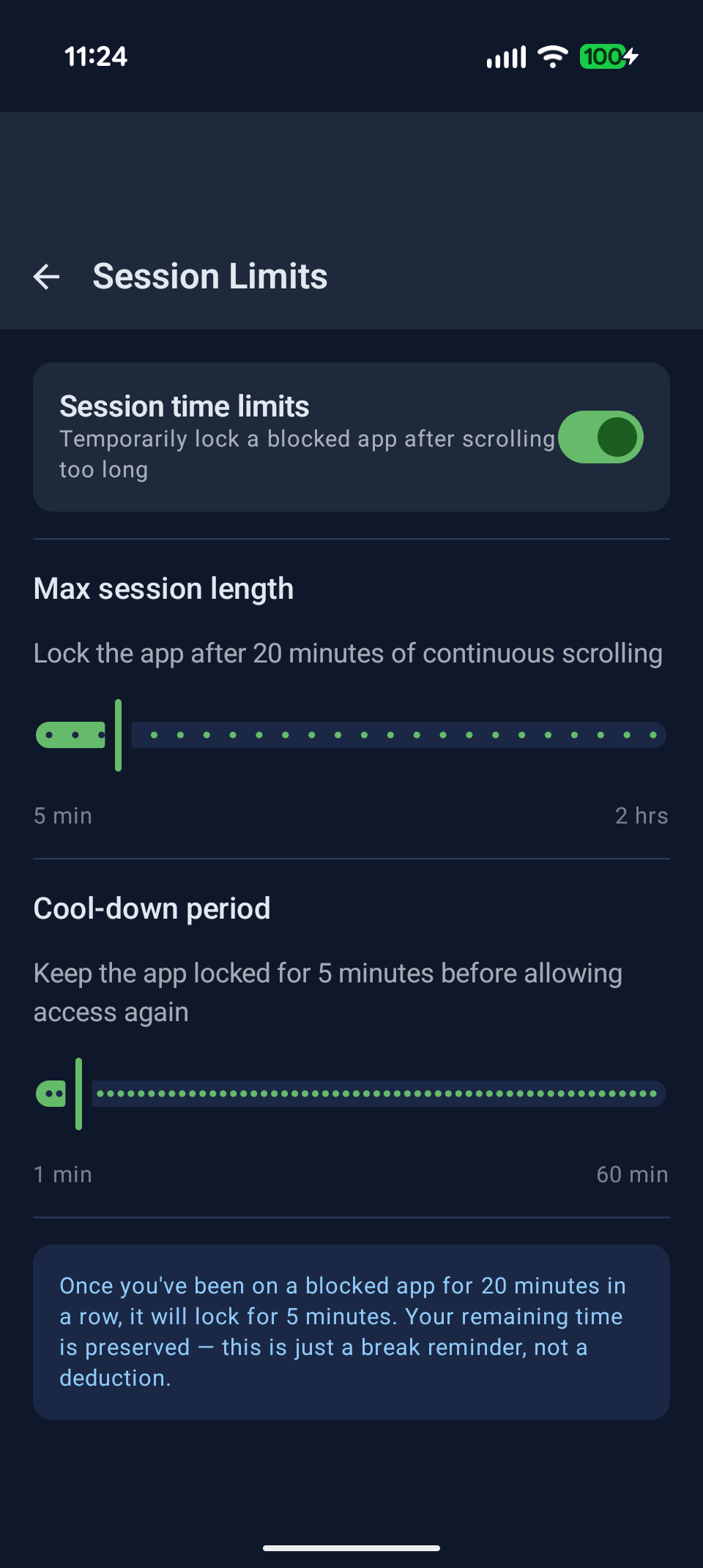
Settings → Session Limits — cap each scroll session and set a required break
This means you can still use your full balance throughout the day, just in smaller, healthier chunks rather than one long spiral. Your bank balance carries over between sessions — the limit only applies to how long any single session runs.
Hi there,
Smart thinking — and yes, Move2Swipe has exactly this covered.
The Phone Budget is a hard ceiling on how much screen time you can earn in a single day, no matter how many activities you complete. Once you hit it, additional completions don't add more time. It's designed to prevent the "I'll just do 10 workouts and scroll all day" loophole.
You set it once in Settings → Lifestyle Goals:
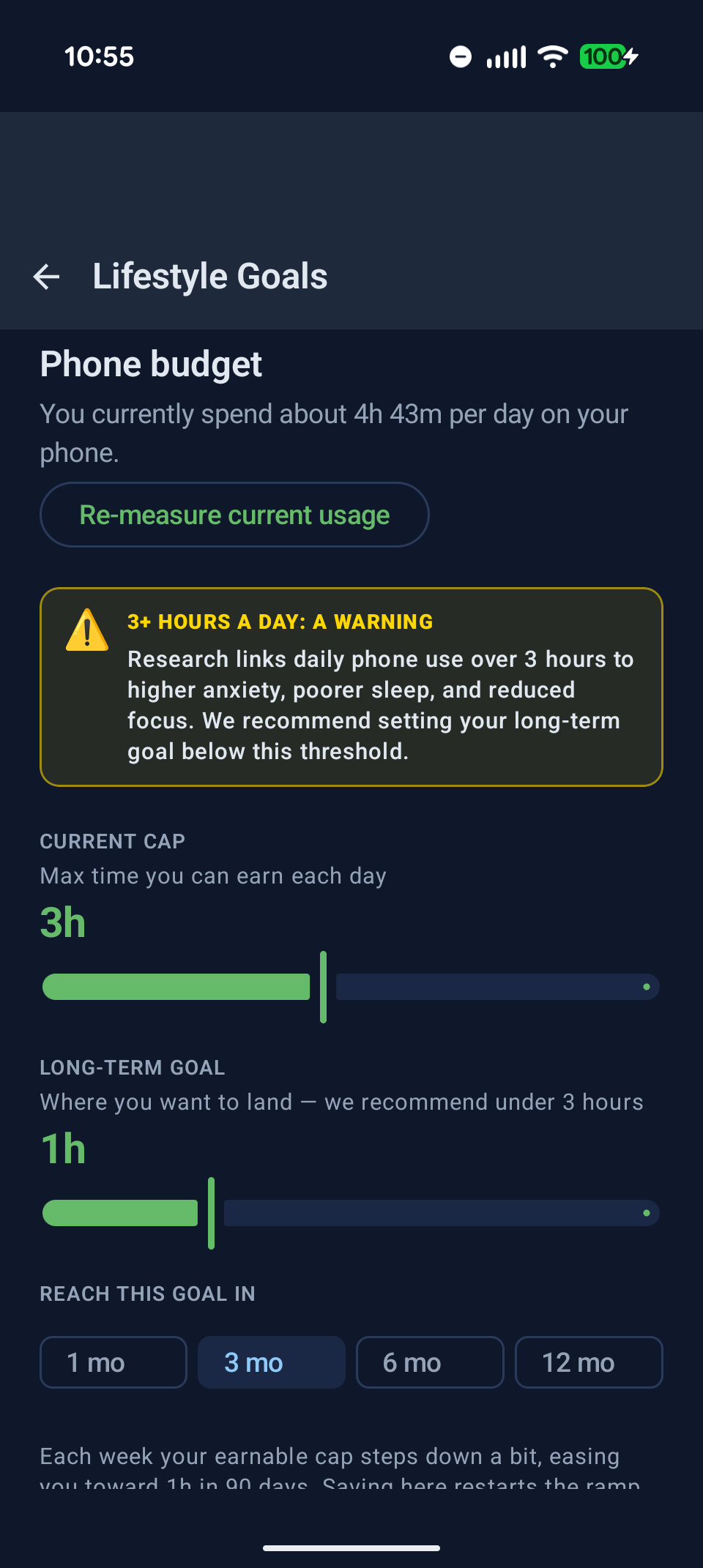
Settings → Lifestyle Goals — set your daily cap and long-term screen time goal
The ramp is gradual — Move2Swipe reduces your cap week by week so the change feels natural rather than shocking. Once you hit your daily ceiling, the app shows a "Daily goal reached" banner and stops adding time.
Hey,
Streaks are one of the most motivating parts of the app once you get going.
Every time you complete at least one activity in a day, your streak grows. Miss a day (or take a rest day without activating the Rest Day feature) and it resets. The Progress screen shows your current streak, your best streak ever, and a calendar of your activity history.
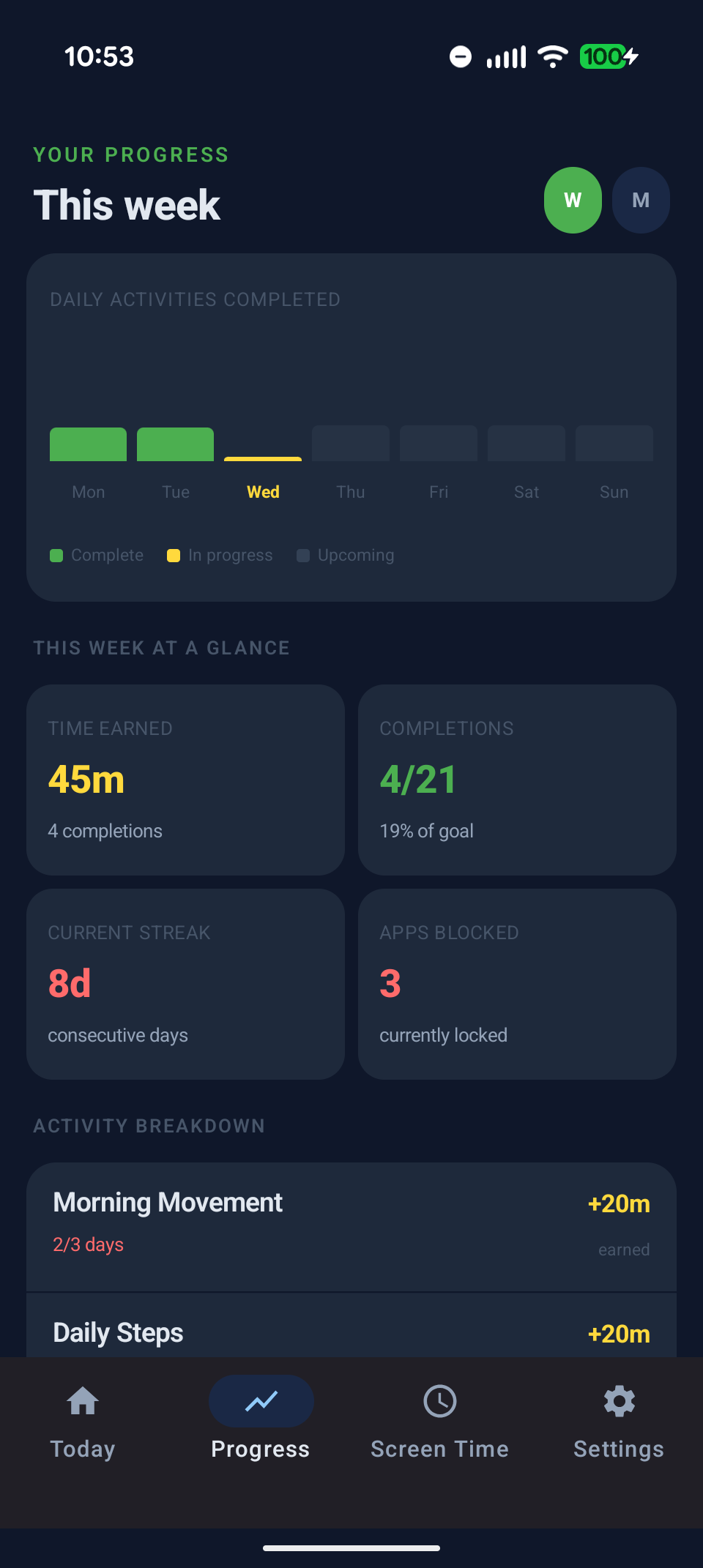
The Progress screen tracks your streak, weekly stats, and activity calendar
Every 6 active days, you hit a streak milestone and earn a bonus 30 minutes added to your bank automatically. If you've configured 2 rest days per week, the milestone happens every 5 active days instead — this keeps the milestone landing roughly once a week regardless of how many rest days you take. It's the app's way of rewarding consistency over perfection.
Hi there,
Easy fix — you just need to add TikTok to your blocked list. The app doesn't block everything by default; you choose exactly which apps are gated behind your earned time.
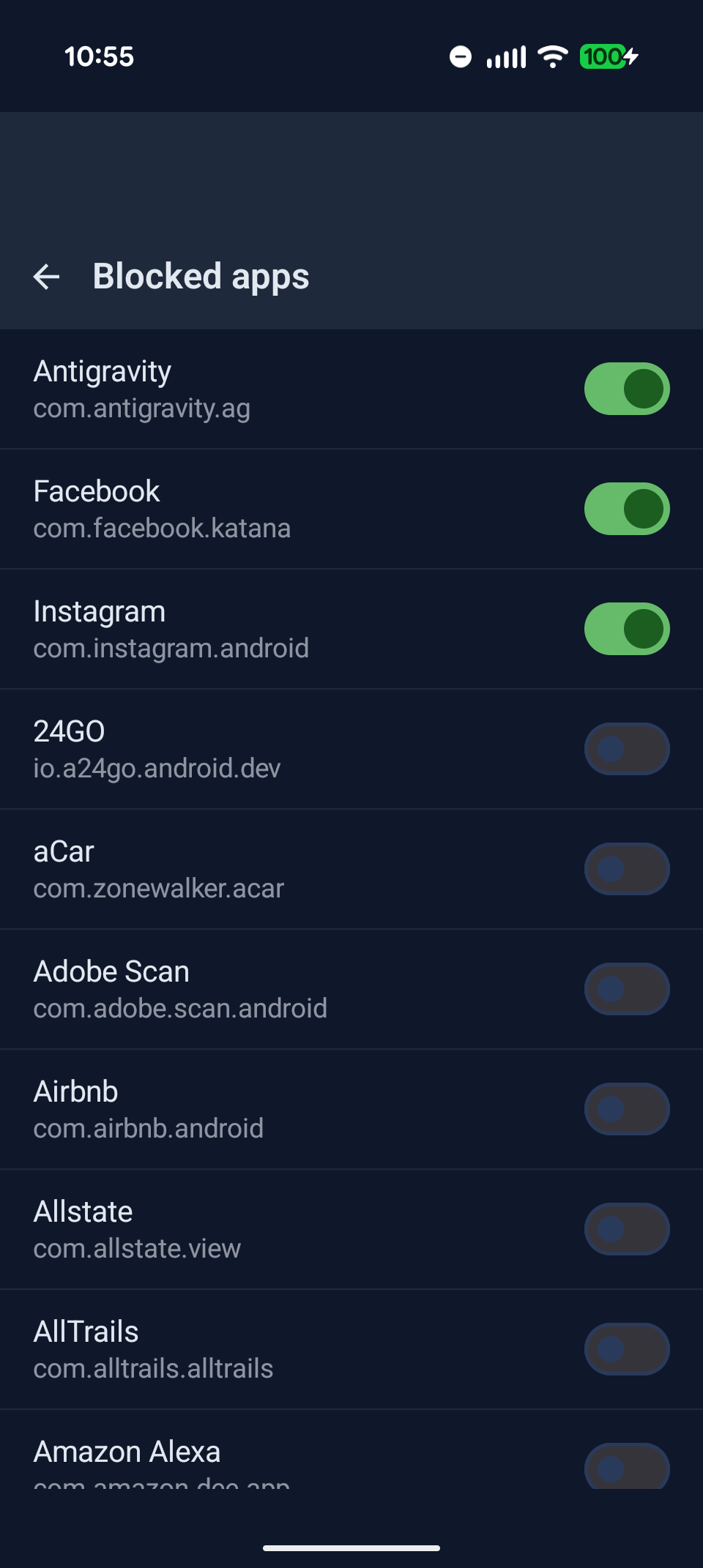
Settings → Blocked Apps — toggle any installed app on or off
You can block as many apps as you want, and you can change the list anytime. A good rule of thumb: block any app you open out of habit rather than intention — social media, news apps, video platforms, anything you reach for without thinking.
Hi,
Usually this is one of two things:
1. The Accessibility Service got disabled. Android occasionally turns off third-party accessibility services after a reboot or update. Go to Settings → Permissions inside Move2Swipe — if it shows the accessibility permission as off, tap it and re-enable Move2Swipe in Android's accessibility settings.
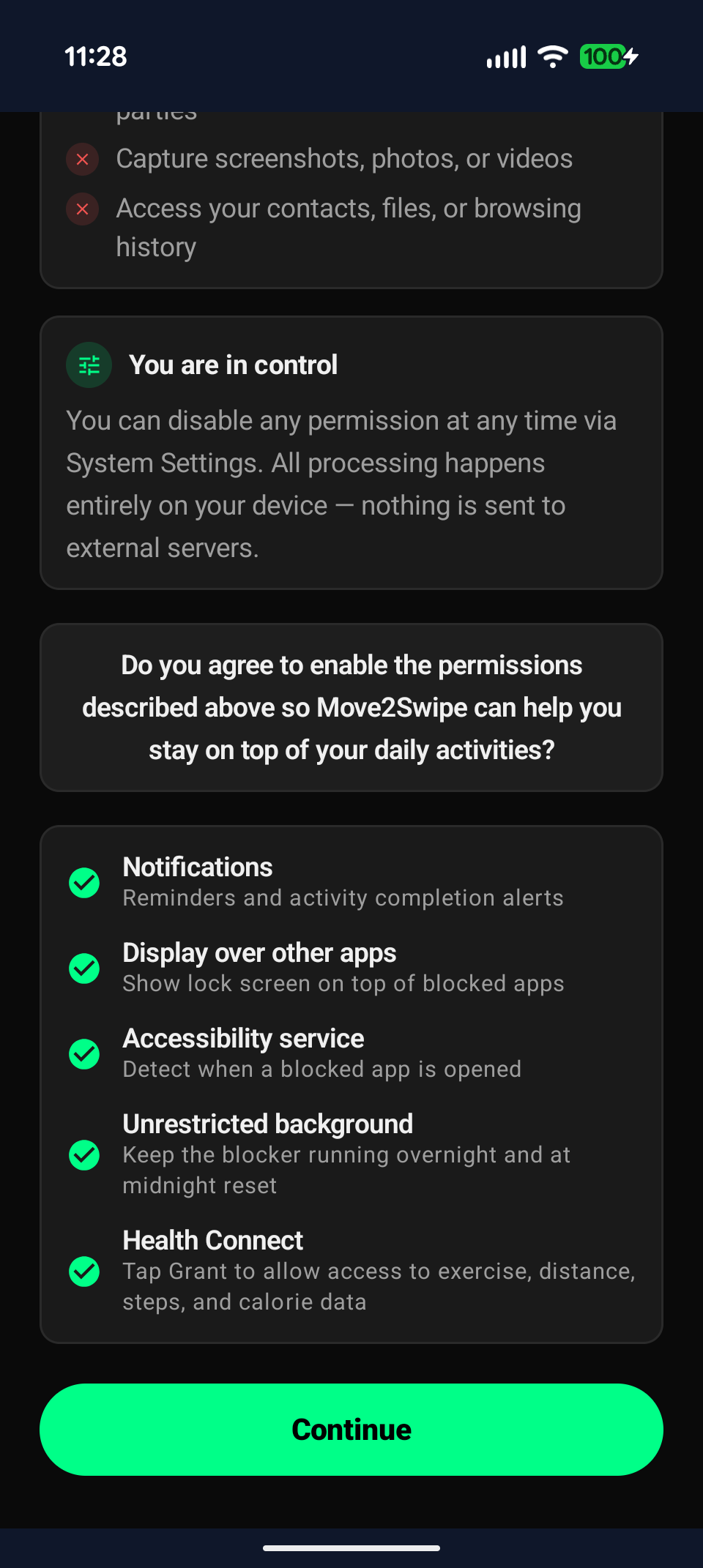
Settings → Permissions — check that the Accessibility Service is active
2. You have a small morning grace period. Move2Swipe gives you a 5-minute head start each morning so you can open the app and start your activities without immediately hitting a wall. This resets at your configured day-reset time.
If neither of those explains it, let me know your Android version and I can dig deeper.
Hey,
Adding a new activity takes about 30 seconds. Here's the flow:
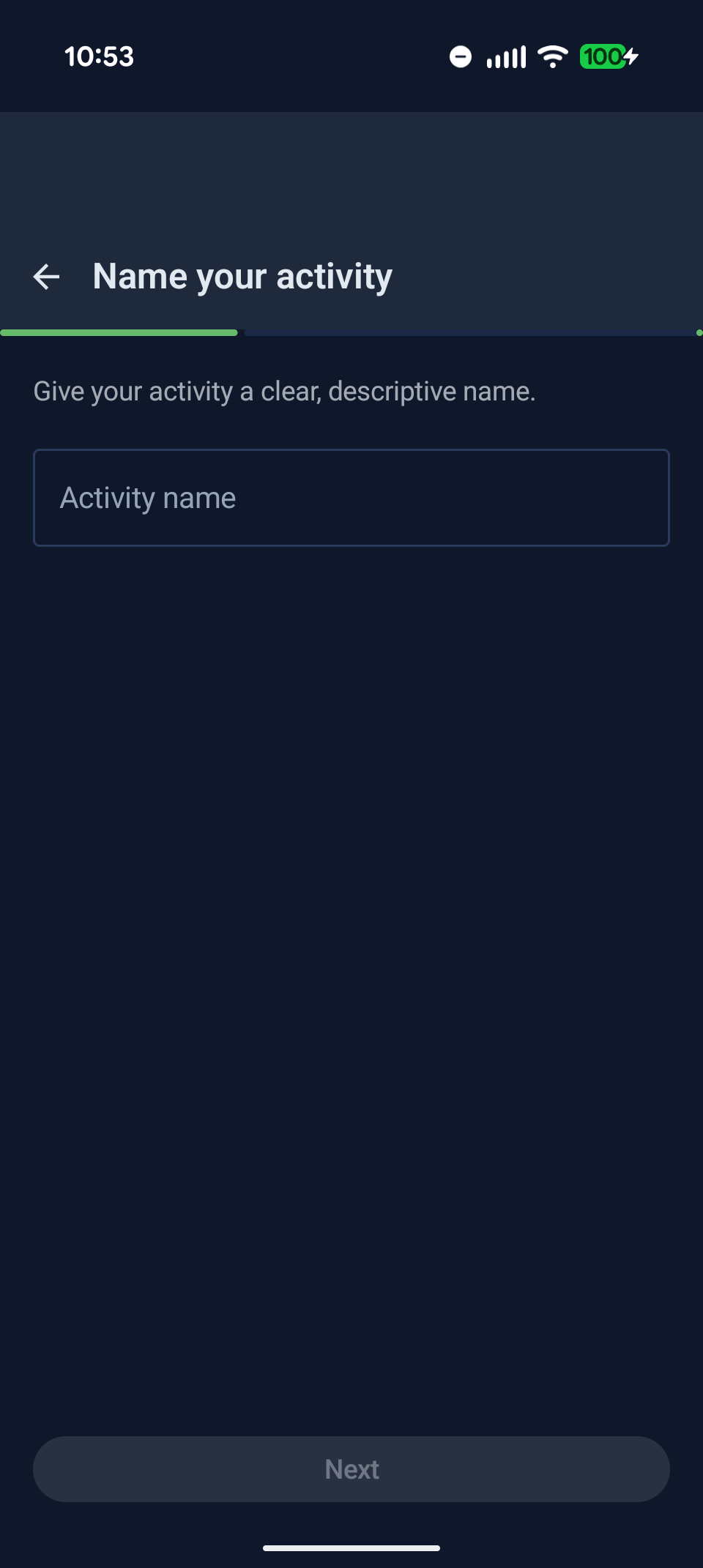
Step 1: Name it
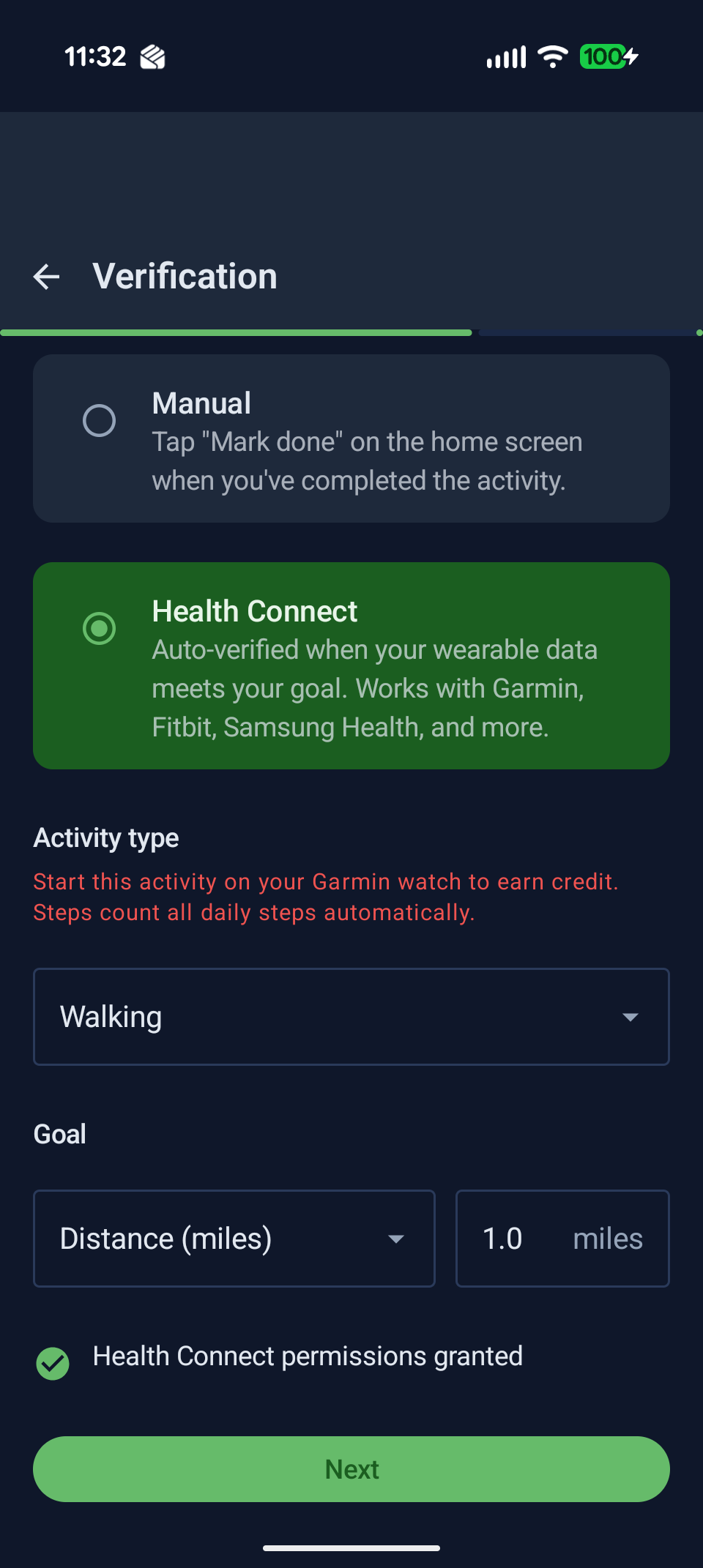
Step 2: How it's verified
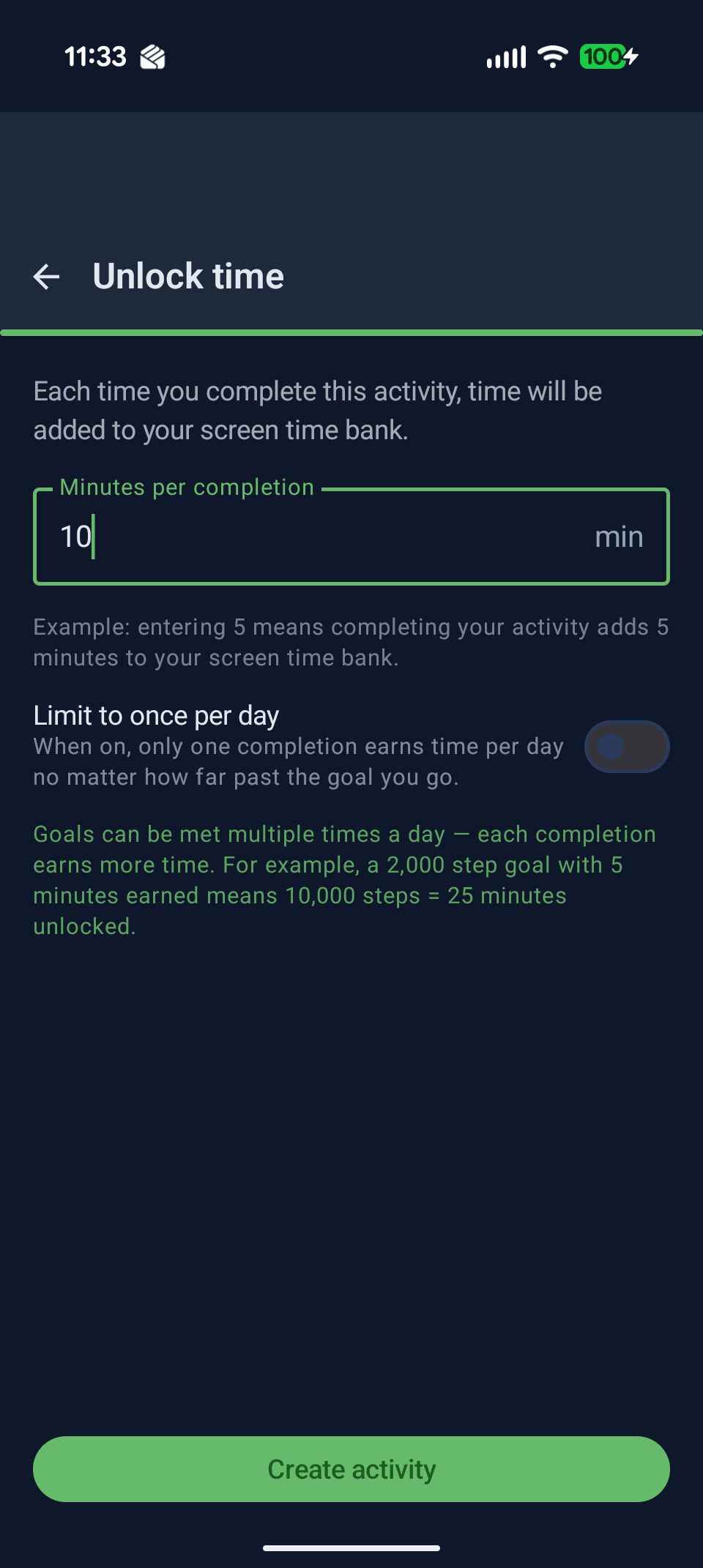
Step 3: Minutes earned
For Health Connect verification, you'll set a target (e.g., burn 200 kcal, walk 2,000 steps) and the app automatically checks whether you hit it each day. No manual logging needed.
Hi,
Yes, you can edit any activity anytime. Just tap the activity card on the Today screen to open its settings.
From the edit screen you can:
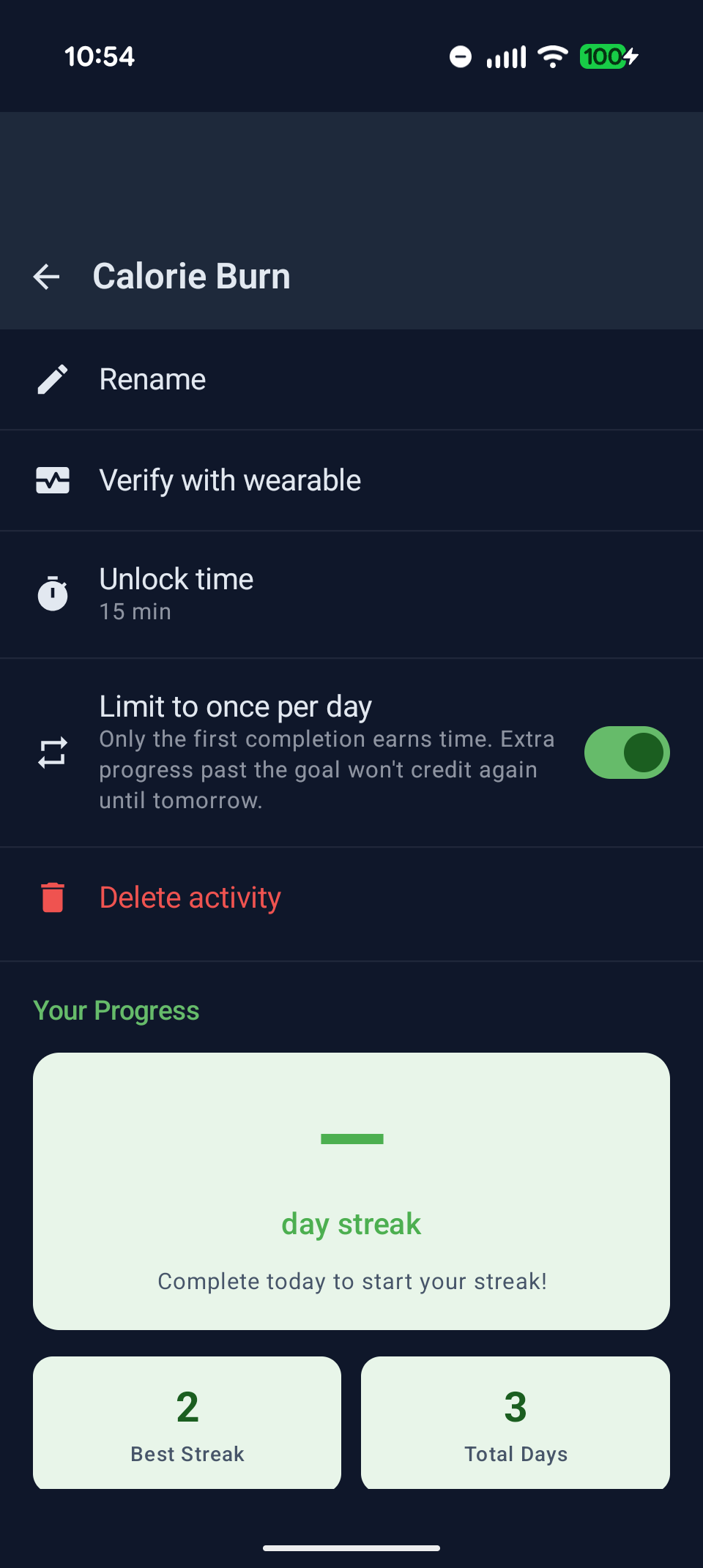
Activity settings — edit name, time earned, and more
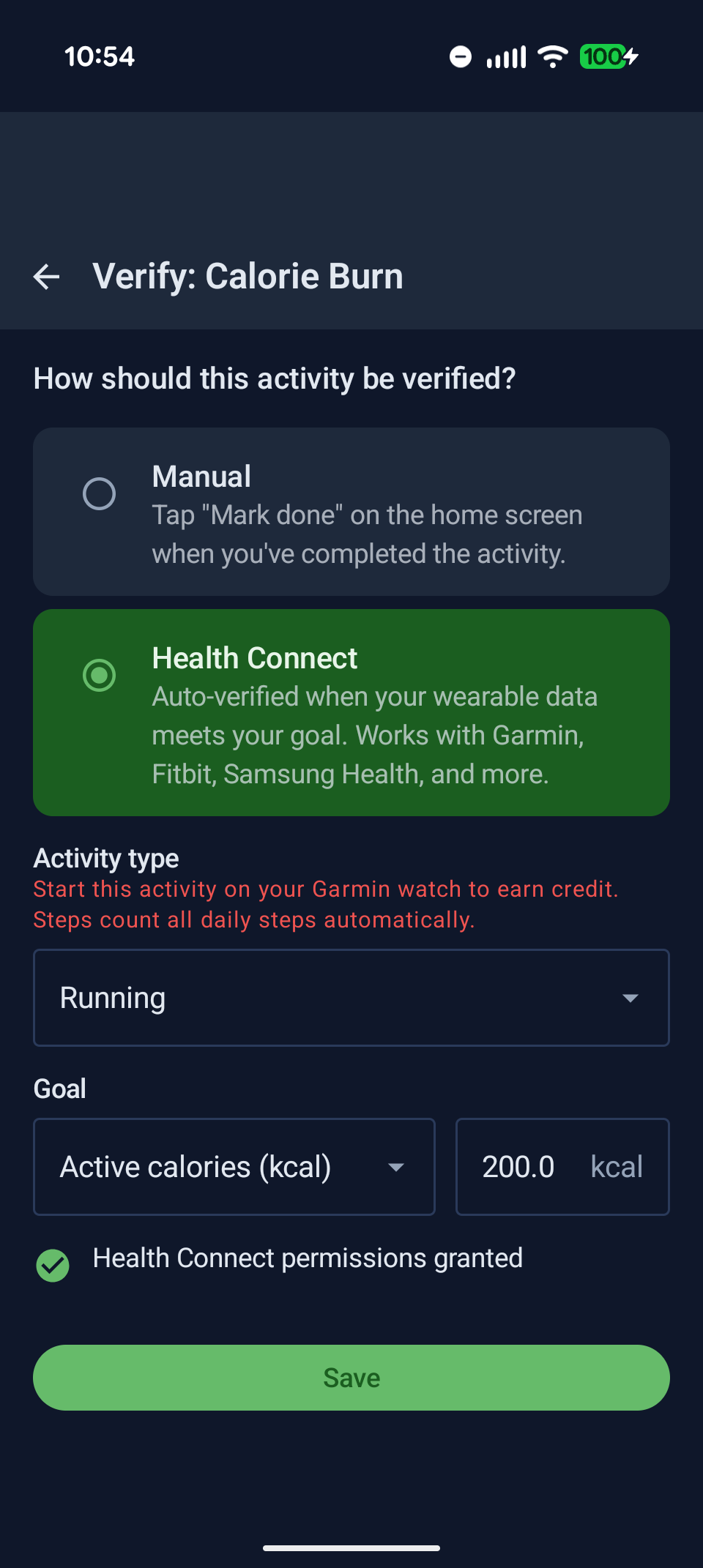
Change how the activity is verified
Hi,
Deep Focus is a manual focus timer you can trigger anytime — it blocks all your gated apps for a set duration, regardless of your time bank balance. Think of it as a "do not disturb" mode that's actually enforced.
To start one, tap Start on the Deep Focus card on your Today screen, then pick your duration:
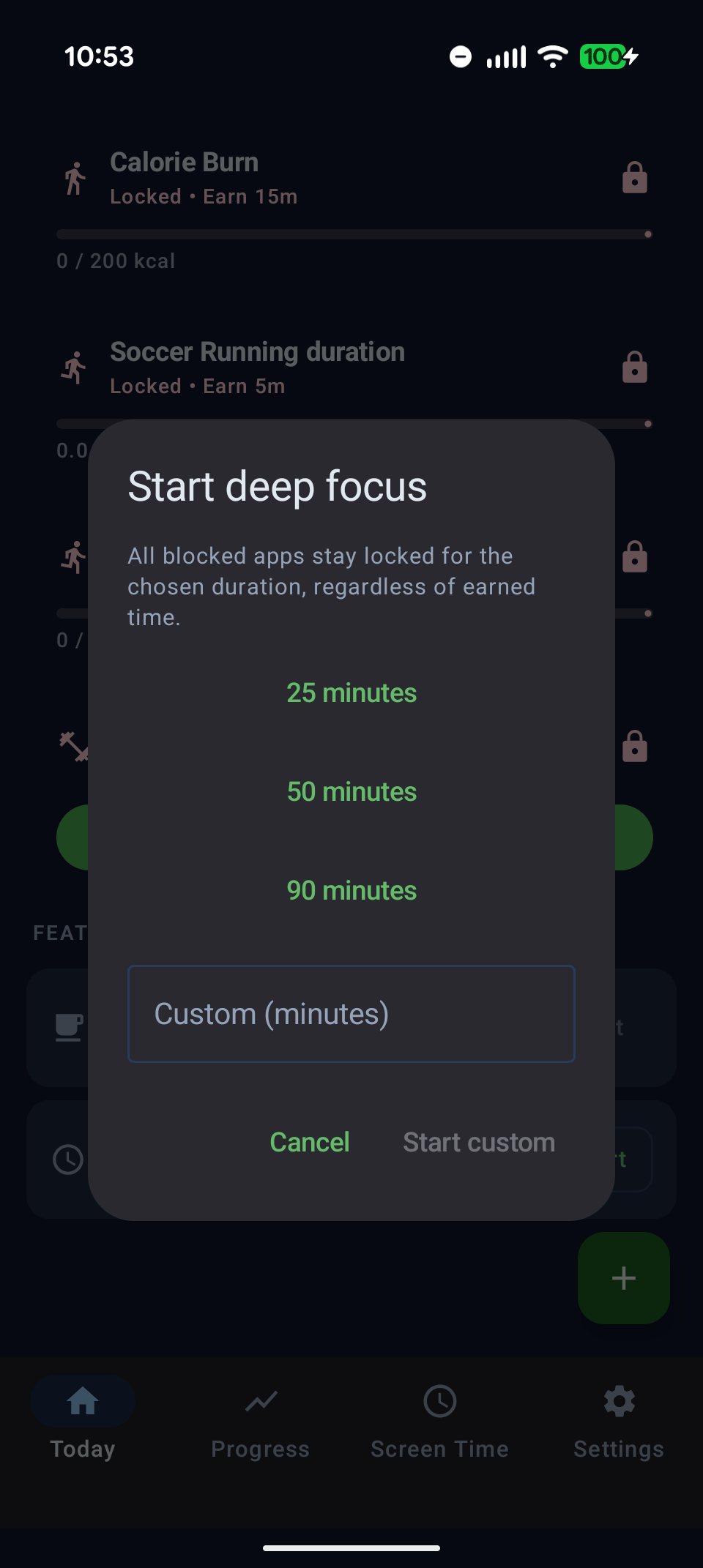
Pick 25, 50, or 90 minutes — or set a custom duration
Common use cases:
Your time bank is paused during Deep Focus — the balance doesn't drain while you're in a session. After the timer ends, the block lifts and your bank picks up from where it left off.
Hey,
Yes — that's exactly what Rest Days are for, and they're built to protect your streak while giving you a real break.
On your Today screen, tap Set on the Rest Day card. You'll see a confirmation dialog explaining what happens:
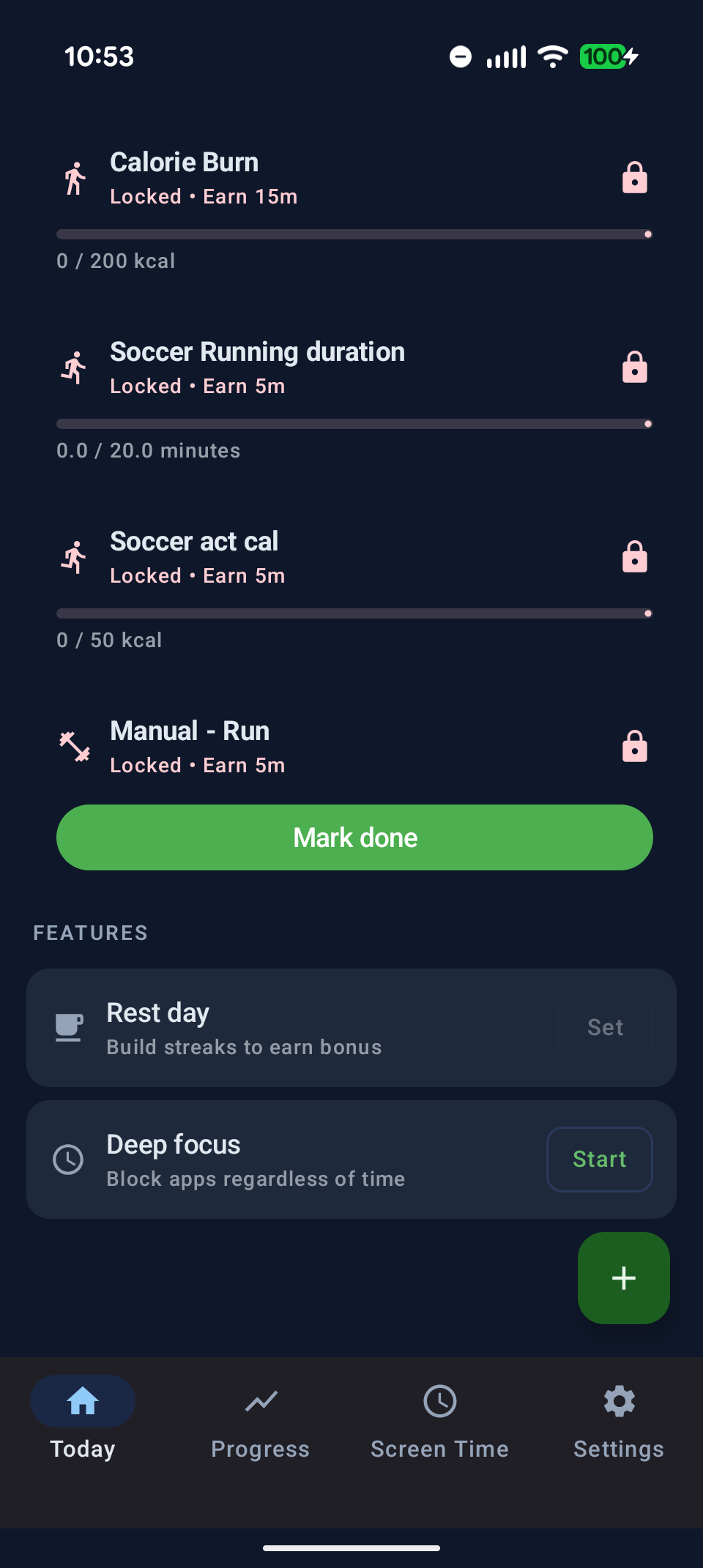
Activating a rest day keeps your streak alive and opens a 2-hour bonus bank
By default you can take one rest day per week, with a cooldown between them. In Settings → Lifestyle Goals you can configure this to allow two rest days per week if your schedule calls for it.
Hi,
Yes — that's exactly what Serious Mode is for, and it's one of the most powerful features in the app for people who mean business.
When Serious Mode is active, you can't:
To activate it, go to Settings → Commitment and tap Get serious. You'll see a confirmation dialog before anything is locked:
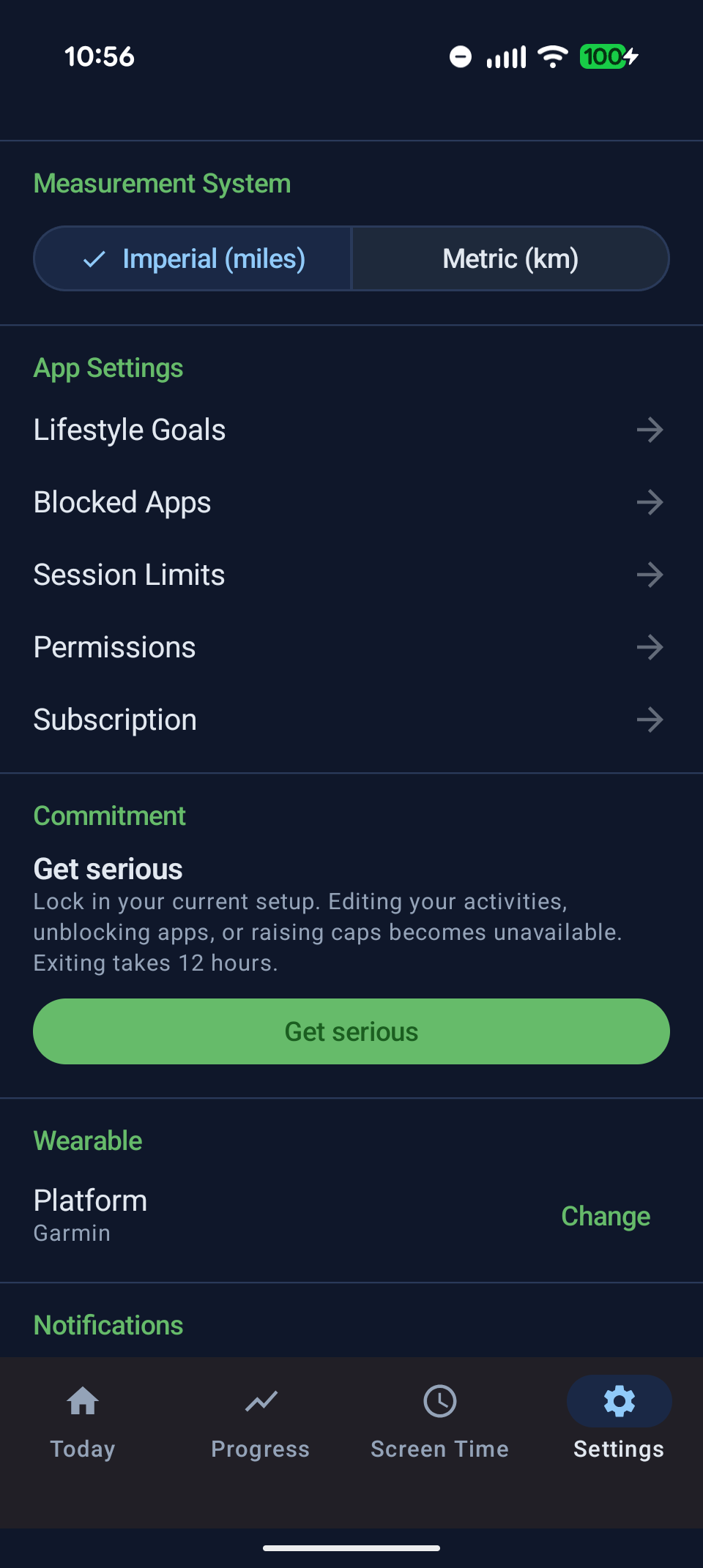
Read the terms carefully — Serious Mode is a real commitment
If you want to exit Serious Mode, you can — but there's a mandatory 12-hour cooldown before the lock lifts. This prevents you from rage-quitting at 2am and undoing weeks of progress. During the cooldown you can cancel and stay in Serious Mode if you change your mind.
Hey,
Absolutely — Move2Swipe lets you set a custom day-reset hour anywhere from midnight to 11pm. Night owls, early birds, shift workers — we've got you.
Go to Settings → Lifestyle Goals and scroll to the Daily Routine section. Use the "My day starts at" slider to pick your reset hour. If you set it to 4am, your activities and time bank reset at 4am instead of midnight.
Settings → Lifestyle Goals — set when your day starts and how many rest days you take per week
This also affects your streak calculation — completing an activity at 1am on a "night owl" schedule still counts for the previous calendar day.
Hi,
The Screen Time tab (bottom navigation, third icon) shows a full breakdown of your daily usage — how long you've spent in each app, today's total, and trends over the past week.
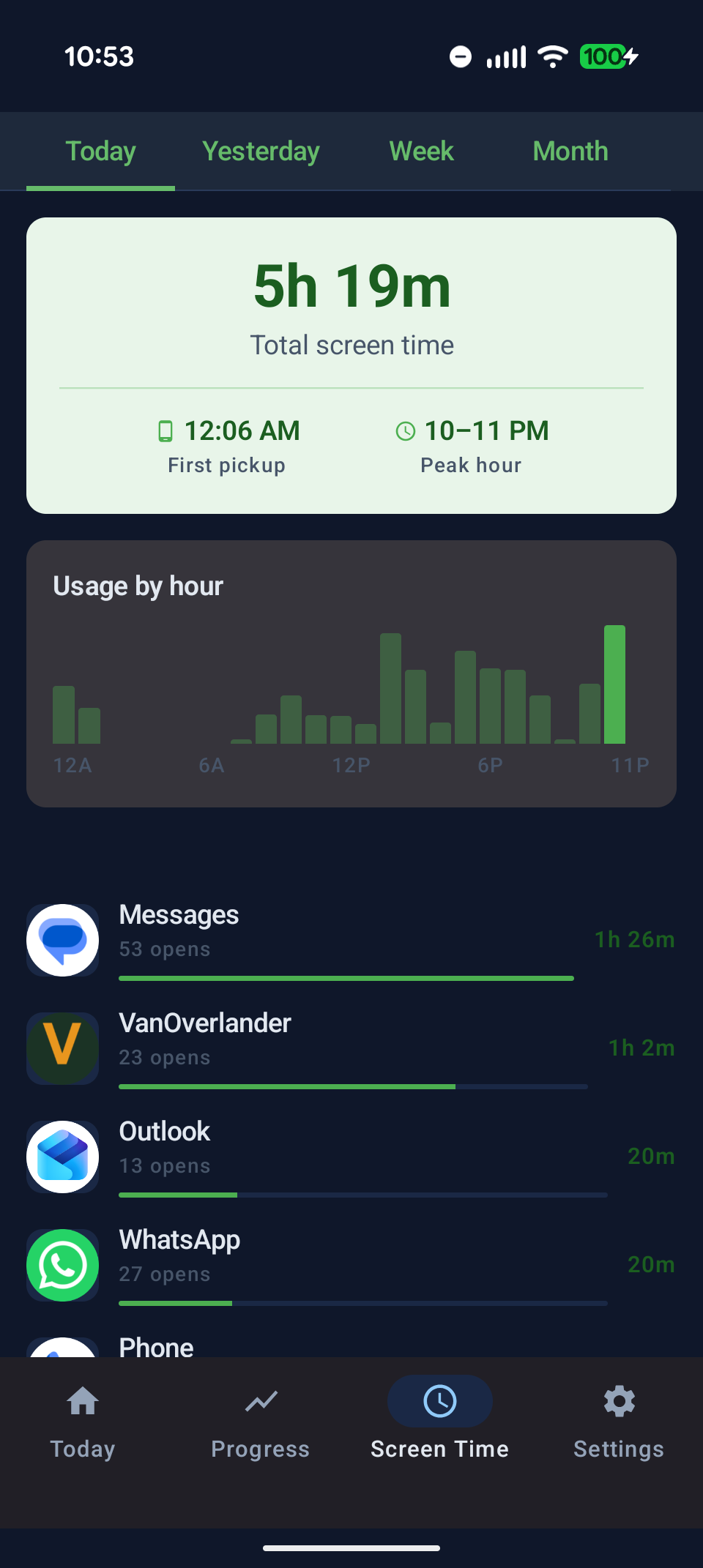
The Screen Time tab shows per-app usage and weekly trends
This is useful for two things:
The data comes directly from Android's built-in usage stats, so it's accurate even for apps that aren't in your blocked list.
Hey,
Easy — just update it in Settings. Move2Swipe uses Android's Health Connect as the data bridge, so switching wearables just means pointing the app at the right companion app.
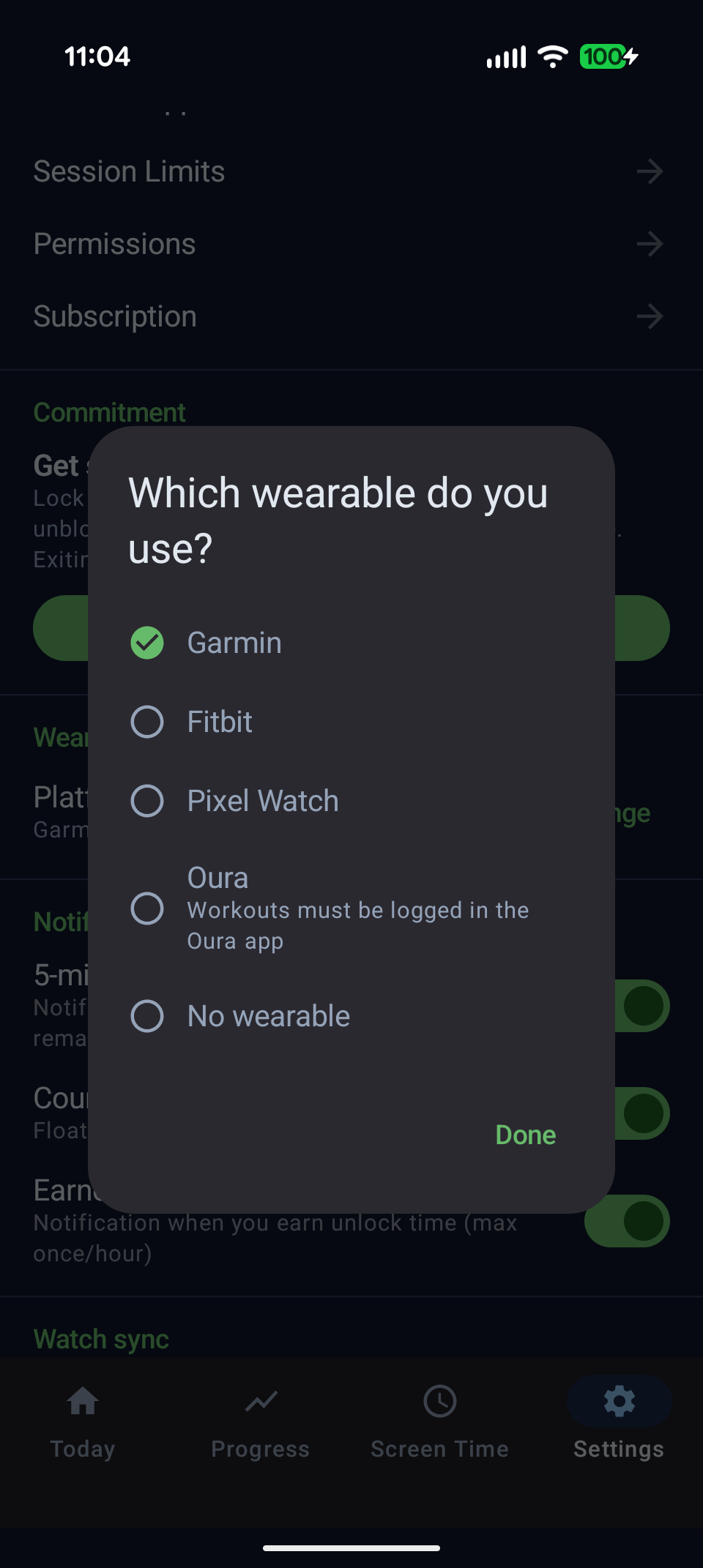
Tap Change to switch wearable platforms anytime
Once you've selected Pixel Watch (Wear OS), make sure the Wear OS app is installed on your phone and syncing data to Health Connect. Move2Swipe reads from Health Connect, so any wearable that writes there will work — including Fitbit, Oura, Samsung, Pixel Watch, and any other Wear OS device (Fossil, TicWatch, Mobvoi, etc.).
Hi,
This is almost always a Health Connect permission issue. Here's the checklist:
Settings → Permissions — all three should show as granted
If everything shows as granted and sync still fails, try opening your wearable companion app manually to force a data push, then tap Sync watch again in Move2Swipe.
Hi,
Not if you have an account set up. Move2Swipe syncs your activities, settings, and preferences to the cloud when you're signed in — so switching phones is as simple as installing the app and signing in.
To set up or check your account:
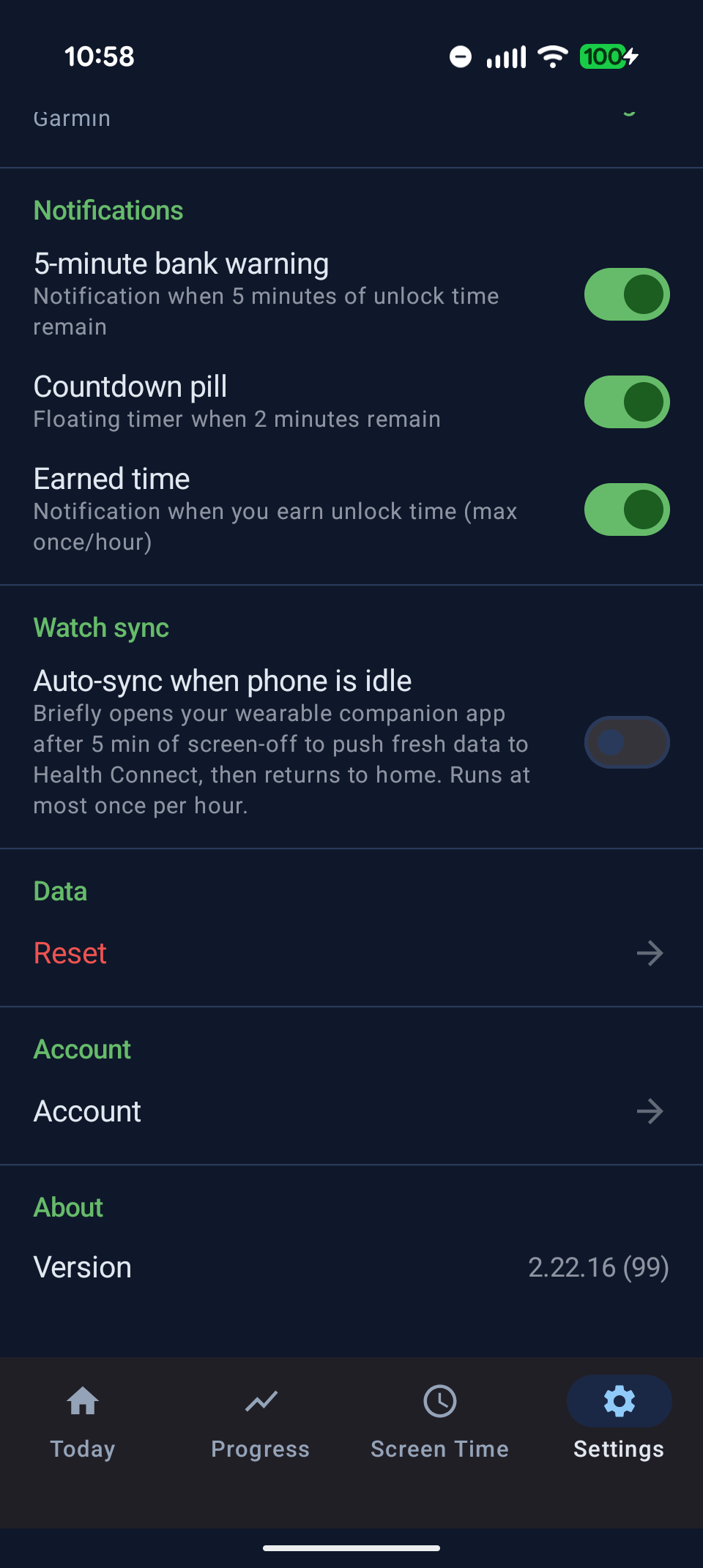
Settings → Account — sign in to enable cloud backup and sync
Hi,
All three plans include every feature in the app — there's no feature gating between tiers, just a difference in how you pay:
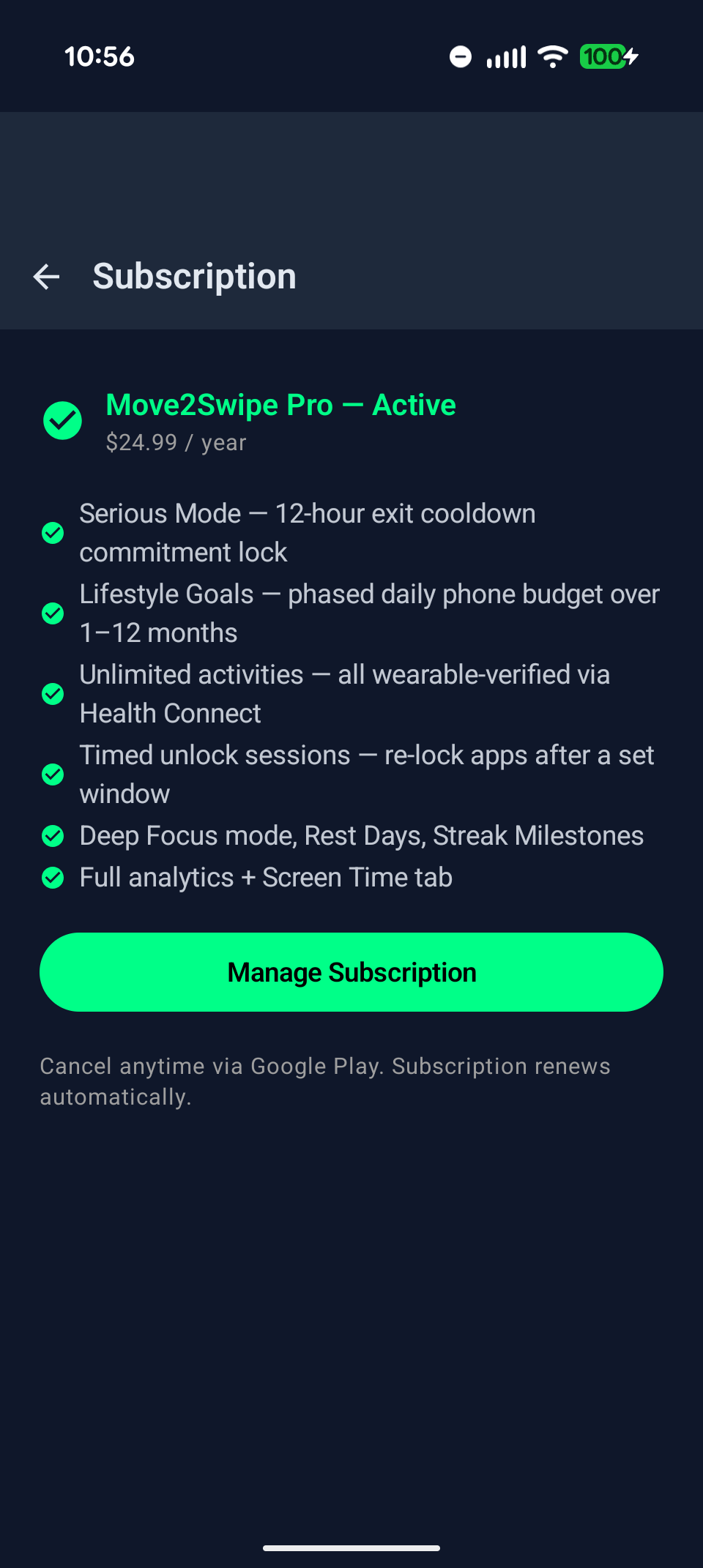
Settings → Subscription — compare plans and start your free trial
Every plan starts with a 7-day free trial — no charge until the trial ends, and you can cancel before then with no cost. The lifetime and annual plans are currently at launch pricing, so the rates you see now are lower than what they'll be long-term.
Hi,
The free tier lets you get a feel for the core loop before committing. On a free account you can:
Pro features — including unlimited activities, Session Limits, Deep Focus, Rest Days, Serious Mode, and cloud backup — require a subscription. The 7-day free trial gives you full access to everything so you can make an informed decision.

Try free for 7 days. Your goals. Your rules. Your screen time — earned.
7-day free trial · From $4.99/mo or $24.99/yr · Works with your existing wearable